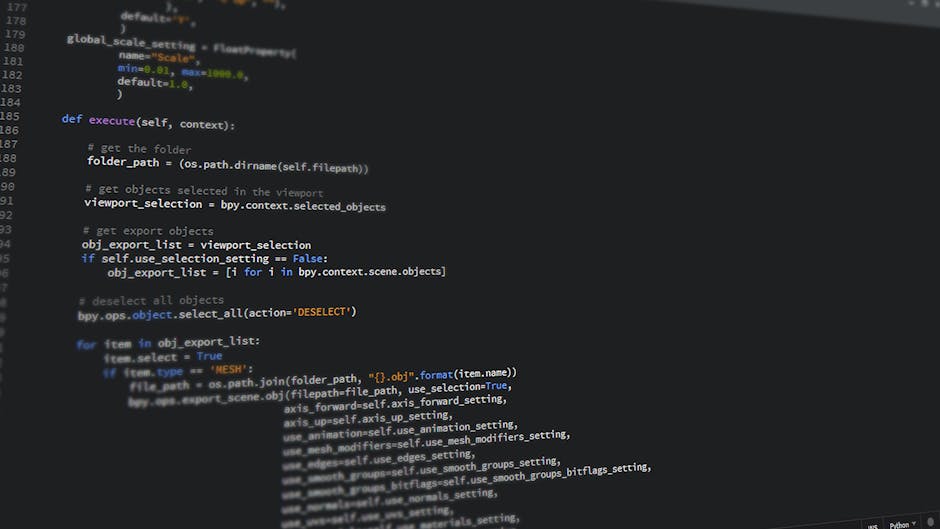
Learn ML.NET image classification in C#. Train, evaluate, and use a deep learning model to classify images step by step. Start building today!
ML.NET image classification lets .NET developers build production-ready computer vision models without leaving C#. If you have ever wanted to train a model that can tell a cat from a dog, detect defective parts on an assembly line, or sort product photos automatically, this tutorial is for you. In this guide you will learn how to perform ML.NET image classification in C# from scratch — loading images, applying transfer learning, training a deep learning model, evaluating accuracy, and using the trained model to make predictions on new images.
ML.NET is Microsoft's open-source, cross-platform machine learning framework for .NET. It runs on Windows, Linux, and macOS, integrates directly with ASP.NET Core and console apps, and ships a high-level Image Classification API built on top of TensorFlow. That means you get GPU-accelerated deep learning while writing idiomatic C#. Let's dive in.
Why Use ML.NET for Image Classification in C#?
Most machine learning tutorials assume Python. But if your stack is already .NET, switching languages adds friction: separate deployment pipelines, extra runtimes, and a second team skill set. Image classification in C# with ML.NET keeps everything in one ecosystem. Here is why it matters:
- No language switch: Train and consume models entirely in C#, reusing your existing build, test, and CI/CD tooling.
- Transfer learning built in: ML.NET uses pretrained models like Inception v3 and ResNet, so you can train a strong classifier with only a few hundred images instead of millions.
- Production friendly: The saved
.zipmodel loads in a few lines inside an ASP.NET Core API, a desktop app, or an Azure Function. - GPU acceleration: With the right packages, training offloads to your NVIDIA GPU for dramatically faster runs.
The key concept that makes this practical is transfer learning. Instead of training a neural network from zero, ML.NET reuses a deep convolutional network already trained on millions of images and retrains only the final layers on your data. This is why you get high accuracy with a small dataset and a short training time.
Setting Up Your ML.NET Project
Start with a .NET console application targeting .NET 8 or later. Then add the required NuGet packages. The Microsoft.ML.Vision package provides the Image Classification API, and SciSharp.TensorFlow.Redist supplies the native TensorFlow backend.
dotnet new console -n ImageClassifier
cd ImageClassifier
dotnet add package Microsoft.ML
dotnet add package Microsoft.ML.Vision
dotnet add package SciSharp.TensorFlow.Redist
Next, organize your training images into one folder per category. ML.NET infers the label from the folder name, which keeps your code clean:
assets/
  images/
    cat/      (cat photos)
    dog/      (dog photos)
    rabbit/   (rabbit photos)
Aim for at least 100 to 200 images per class to get reliable results. More balanced data across classes generally means better accuracy.
Step 1: Define the Data Models
ML.NET works with strongly typed classes. Define an input class for raw image data and an output class for predictions. This is one of the things that makes C# machine learning pleasant — the compiler catches schema mistakes before you ever run training.
using Microsoft.ML.Data;

public class ImageInput
{
    [LoadColumn(0)]
    public string ImagePath { get; set; } = string.Empty;

    [LoadColumn(1)]
    public string Label { get; set; } = string.Empty;
}

public class ImagePrediction
{
    [ColumnName("PredictedLabel")]
    public string PredictedLabel { get; set; } = string.Empty;

    public float[] Score { get; set; } = Array.Empty();
}
Step 2: Load Images from the Folder Structure
Write a small helper that walks the directory tree and produces one ImageInput per file, using the parent folder name as the label. Loading data correctly is critical: a common pitfall is passing relative paths that resolve differently at runtime, so always build absolute paths.
using Microsoft.ML;

IEnumerable LoadImagesFromDirectory(string folder)
{
    foreach (var file in Directory.GetFiles(folder, "*", SearchOption.AllDirectories))
    {
        var ext = Path.GetExtension(file).ToLowerInvariant();
        if (ext != ".jpg" && ext != ".jpeg" && ext != ".png")
            continue;

        yield return new ImageInput
        {
            ImagePath = file,
            Label = Directory.GetParent(file)!.Name
        };
    }
}

var mlContext = new MLContext(seed: 1);

var imageFolder = Path.Combine(Environment.CurrentDirectory, "assets", "images");
IDataView fullData = mlContext.Data.LoadFromEnumerable(LoadImagesFromDirectory(imageFolder));

// Shuffle so classes are not grouped together, which would bias training
fullData = mlContext.Data.ShuffleRows(fullData);
Step 3: Build the ML.NET Image Classification Pipeline
Now comes the heart of ML.NET image classification: the training pipeline. You need three transforms. First, convert the text labels into numeric keys. Second, load the actual image bytes from disk. Third, run the ImageClassification trainer, which performs transfer learning using a pretrained architecture.
using Microsoft.ML.Vision;

// Split into 80% training and 20% testing
var split = mlContext.Data.TrainTestSplit(fullData, testFraction: 0.2);

var pipeline = mlContext.Transforms.Conversion
    .MapValueToKey(inputColumnName: "Label", outputColumnName: "LabelKey")
    .Append(mlContext.Transforms.LoadRawImageBytes(
        outputColumnName: "Image",
        imageFolder: null,
        inputColumnName: "ImagePath"))
    .Append(mlContext.MulticlassClassification.Trainers.ImageClassification(
        new ImageClassificationTrainer.Options
        {
            FeatureColumnName = "Image",
            LabelColumnName = "LabelKey",
            Arch = ImageClassificationTrainer.Architecture.ResnetV2101,
            Epoch = 100,
            BatchSize = 16,
            LearningRate = 0.01f,
            MetricsCallback = m => Console.WriteLine(m),
            ValidationSet = split.TestSet
        }))
    .Append(mlContext.Transforms.Conversion.MapKeyToValue(
        outputColumnName: "PredictedLabel",
        inputColumnName: "PredictedLabel"));
Why these settings? The Arch option selects the pretrained backbone — ResNet V2 101 is accurate but heavier, while Inception V3 trains faster. An Epoch is one full pass over the data; 100 is a reasonable starting point. BatchSize controls how many images are processed before the model updates its weights, and the LearningRate determines how big each update step is. Passing a ValidationSet lets ML.NET report accuracy during training so you can spot overfitting early.
Step 4: Train and Evaluate the Model
Call Fit to start training. Depending on your dataset size and whether you have a GPU, this takes anywhere from a couple of minutes to half an hour. After training, evaluate the model on the held-out test set to measure real performance on data it never saw.
Console.WriteLine("Training the model...");
ITransformer model = pipeline.Fit(split.TrainSet);

Console.WriteLine("Evaluating...");
IDataView predictions = model.Transform(split.TestSet);

var metrics = mlContext.MulticlassClassification.Evaluate(
    predictions,
    labelColumnName: "LabelKey",
    predictedLabelColumnName: "PredictedLabel");

Console.WriteLine($"Macro Accuracy:  {metrics.MacroAccuracy:P2}");
Console.WriteLine($"Micro Accuracy:  {metrics.MicroAccuracy:P2}");
Console.WriteLine($"Log Loss:        {metrics.LogLoss:F4}");
How to read these metrics: Micro accuracy aggregates the contribution of all classes and is dominated by larger classes, while macro accuracy is the average accuracy across classes regardless of size — watch macro accuracy closely when your dataset is imbalanced. Log loss penalizes confident wrong predictions; lower is better. For most small projects, aim for macro accuracy above 90%.
Step 5: Save and Use the Trained Model
A trained model is only useful if you can ship it. ML.NET serializes the entire pipeline to a single .zip file, which you can commit to a release artifact and load in any .NET app.
mlContext.Model.Save(model, fullData.Schema, "imageClassifier.zip");
Console.WriteLine("Model saved to imageClassifier.zip");
To classify a new image, load the saved model once and create a PredictionEngine. The engine is not thread-safe, so in a web app use PredictionEnginePool from Microsoft.Extensions.ML instead of a single shared instance — this is a frequent production pitfall.
var loadedModel = mlContext.Model.Load("imageClassifier.zip", out _);

var engine = mlContext.Model
    .CreatePredictionEngine(loadedModel);

var sample = new ImageInput
{
    ImagePath = Path.Combine(Environment.CurrentDirectory, "test", "unknown.jpg")
};

ImagePrediction result = engine.Predict(sample);

float confidence = result.Score.Max();
Console.WriteLine($"Predicted: {result.PredictedLabel} ({confidence:P1} confidence)");
The Score array holds a probability for each class, so result.Score.Max() gives you the model's confidence. In real applications, set a confidence threshold (for example, reject predictions below 60%) so low-certainty results can be flagged for human review rather than acted on automatically.
Best Practices for ML.NET Image Classification
To get the most out of image classification in C#, keep these production-tested practices in mind:
- Balance your dataset: Keep the number of images per class roughly equal. Heavily imbalanced data makes the model biased toward the majority class.
- Use a validation set: Always hold out data the model never trains on so your accuracy numbers reflect reality, not memorization.
- Augment when data is scarce: Flipping, rotating, and adjusting brightness on your images effectively multiplies your dataset and improves generalization.
- Pick the right architecture: Start with Inception V3 for fast iteration, then switch to ResNet V2 101 if you need higher accuracy and can afford longer training.
- Enable GPU training: Replace the TensorFlow redistributable with the GPU package and install CUDA to cut training time dramatically on large datasets.
- Use PredictionEnginePool in ASP.NET Core: A single
PredictionEngineis not thread-safe; the pool gives every request a safe, reusable engine.
Common Pitfalls to Avoid
Even experienced developers hit these snags when learning to train an ML.NET model for vision tasks:
- Missing TensorFlow native binaries: If you forget
SciSharp.TensorFlow.Redist, training throws a cryptic native DLL error. Always add it explicitly. - Relative image paths: Paths that work in the IDE may break after publishing. Build absolute paths from
Environment.CurrentDirectoryorAppContext.BaseDirectory. - Too few epochs: Stopping training too early leaves accuracy on the table; watch the per-epoch metrics and increase epochs until accuracy plateaus.
- Overfitting: If training accuracy is high but test accuracy is low, the model memorized your data. Add more images, augment, or reduce epochs.
Conclusion: Key Takeaways
You now have a complete, end-to-end workflow for ML.NET image classification in C#. By leaning on transfer learning, you can train an accurate computer vision model with a modest dataset and a few dozen lines of code — all without leaving the .NET ecosystem. Here are the key takeaways:
- ML.NET makes image classification in C# approachable through its high-level Image Classification API and built-in transfer learning.
- Organize images into one folder per label, split into training and test sets, and let ML.NET infer labels automatically.
- Build a three-step pipeline: map labels to keys, load image bytes, and run the
ImageClassificationtrainer with a pretrained architecture. - Always evaluate on held-out data using macro accuracy and log loss, then save the model to a portable
.zipfor production. - Use
PredictionEnginePool, balance your dataset, and watch for overfitting to ship a reliable model.
Ready to build your own classifier? Clone a small dataset, follow the steps above, and you will have a working C# machine learning image model running today. Once it works, deploy it behind an ASP.NET Core API and bring computer vision to your .NET applications.
Your go-to resource for C#, .NET, and modern software development. Follow along for daily tutorials, tips, and real-world examples.
Comments
Post a Comment